
What “photo to signature” actually means
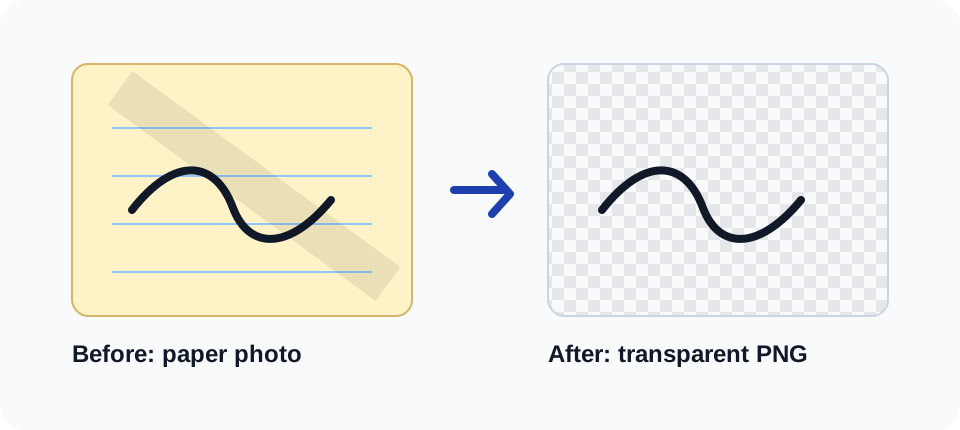
You sign your name on paper, take a photo with your phone, and walk away with a digital signature you can put on any document. That's the whole idea. The tricky part is the middle step — a phone photo of ink on paper still has all that paper behind it. To use it on a PDF or contract, you need the background gone so only the ink remains. That's what this tool does.
Open the tool above, drop in your photo, and download the transparent PNG. Everything runs in your browser — the photo never leaves your device. The rest of this page explains what makes a photo work well, what to avoid, and how to fix a messy result.
How the background removal works
The default method is called Adaptive Threshold. Here's the plain-English version: the tool looks at each pixel in your photo and compares its brightness to its surrounding neighbours. If a pixel is noticeably darker than the area around it, it's probably ink — keep it. If it's close to or brighter than the neighbourhood average, it's probably paper — set it to transparent.
The “compare to neighbours” part is why this works on real photos with uneven lighting. A single fixed brightness cutoff for the whole image would drop the bright parts of the paper fine but miss shadows on the other side. By comparing locally instead of globally, the algorithm adapts. The technical name is Bradley's adaptive thresholding — from a 2007 paper, freely available if you want to dig in.
The AI option uses ISNet, a neural network that runs locally in your browser. Great for complex backgrounds — cluttered desks, patterned wallpaper. Not the best choice for plain paper, since it was trained on photos of people and objects, not handwriting. Adaptive is the right default for paper photos; AI is there for the harder cases.
What makes a photo work well
Honest truth: the photo quality matters way more than which algorithm you pick. Get these four things right and you'll get a clean result almost every time.
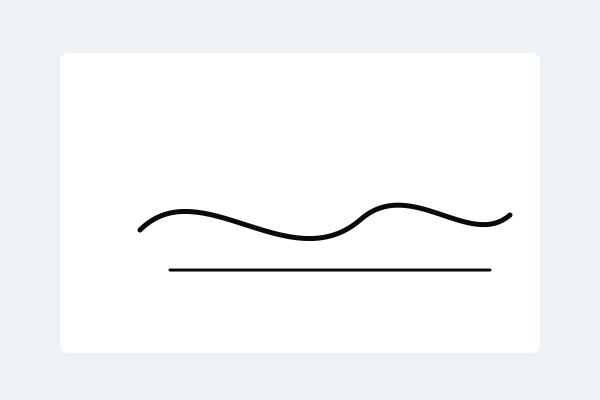
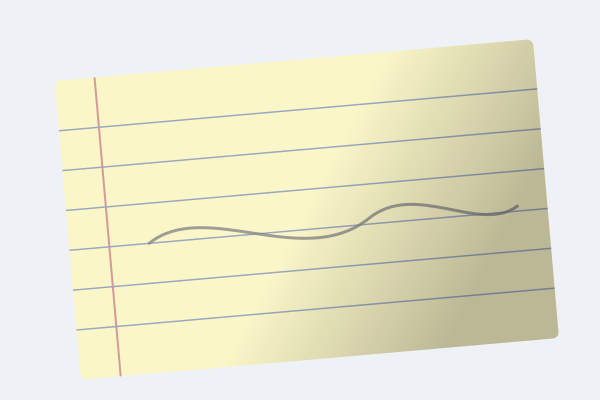
Plain white printer paper. Blank A4 or US Letter, no lines, no colour, no watermarks. Lined notebook paper — especially blue-ruled — is the single biggest cause of noisy output. The whiter and cleaner the paper, the cleaner the transparency.
Dark ink.Black ballpoint or felt-tip is ideal. Pencil won't work well — it's too close in brightness to the paper surface. Light-blue pens also struggle. The algorithm needs your ink to be clearly darker than the paper. Go dark.
Even lighting.Natural light from a window is surprisingly good here. What doesn't work: phone flash from directly above (creates glare on one side and a shadow on the other), or harsh angled lamp light. If you can see a shadow on the page while framing the shot, move the paper.
Phone directly above the paper. Lens parallel to the page surface — not angled, not tilted. Angled shots create keystone distortion and uneven focus. Brace your elbows on a table to keep it steady.
What doesn't work, and why
We'd rather be upfront about this than let you spend twenty minutes troubleshooting something the tool genuinely can't fix.
- Lined notebook paper. Blue rules and red margins compete with your ink. Sometimes you can tune the threshold to remove them, but you risk losing thin strokes at the same time. Just re-sign on plain paper — it takes 30 seconds.
- Pencil. Pencil sits at about 60–70% of paper brightness, which gives the algorithm almost nothing to work with. The output looks faded. Grab a pen.
- Coloured or textured paper. Yellow legal pads, cream stationery, recycled paper with visible flecks — they all make the background harder to isolate. White printer paper is cheap. Use it.
- Heavy shadows. Flash directly above often creates a bright hot spot on one side and a shadow on the other. Soft daylight from a window beats any artificial light for this.
- Cropped too tight.Leave 20–30% white space around your signature when you frame the shot. The algorithm uses that surrounding paper as its reference for “what the background should look like.” No margin, no reference.
Troubleshooting a noisy result
If the preview looks dirty, here's what to try — in order, fastest first:
- Open Manual threshold and hit the Otsu auto button. Otsu picks a single optimal cutoff for the whole image. Sometimes it outperforms Adaptive on evenly-lit photos.
- Slide the threshold up if paper is still visible in the output. Slide it down if your ink strokes are getting thin or disappearing.
- Try the AIoption. First run downloads the model (~40 MB), then it works offline. Worth it for photos that Adaptive can't salvage.
- If nothing works, retake the photo — plain paper, good light, straight-on framing. Sounds annoying. Takes 30 seconds. Produces a much better result. The tool really can't recover information that isn't in the photo.
- Last resort: switch to Draw or Type mode. Signing with a mouse is awkward, but a typed signature in a good script font looks surprisingly natural in a document.
Need this for a government form?
If you're creating a signature image for an Aadhaar application or UIDAI portal, the workflow is the same — but the export format matters. Government portals expect a JPEG with a white background, not a transparent PNG. Use Download JPG or Download White-bg PNG from the export panel. See the full requirements in the Aadhaar signature size guide.
Your photo never leaves your device
“Browser-only” is something a lot of apps claim. Here's what it actually means for your photo: when you select a file with the upload button, it is never sent over the network. There's no server receiving it, no CDN caching it, no POST request you'd find in your browser's Network tab. The JavaScript on this page reads the file locally, processes the pixel data in memory, and writes the transparent PNG to your downloads folder when you click Download.
Want to verify? Open your browser's developer tools, go to the Network tab, and process a photo. You'll see zero upload requests. Because there are none.