
What is a transparent signature PNG, exactly?
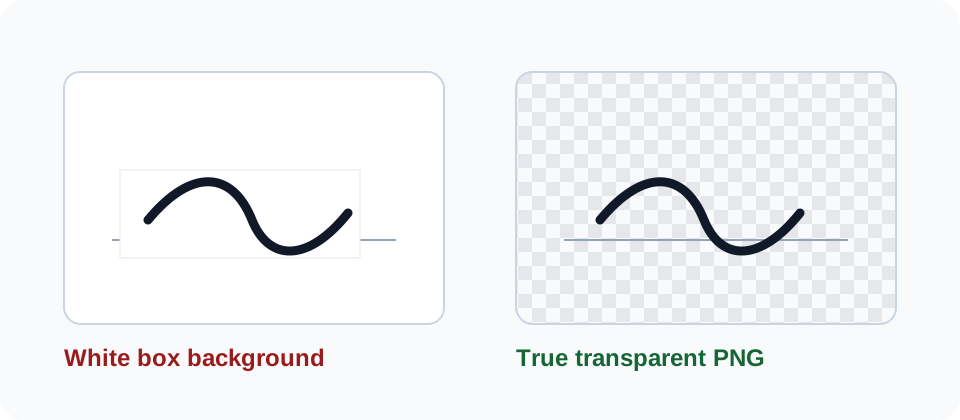
It's a PNG image of your signature where everything except the actual ink strokes is completely invisible. No white background, no grey edges, no rectangular box around your name. When you drop it onto a document, only the strokes show up — whatever was underneath (a signature line, a table cell, a colored background) comes right through.
Simple idea. Harder to actually get right than it sounds. Most “signature generators” online either export a JPG — which has zero transparency support — or they spit out a PNG with a faint white halo that makes your signature look pasted on rather than written. That's the exact problem this tool was built to fix. Every export here is a proper alpha-channel PNG, created locally in your browser.
Why transparency matters more than you'd expect
Picture this: you get a PDF contract, need to sign it, and insert a signature image onto the page. Here's what happens depending on what format you used:
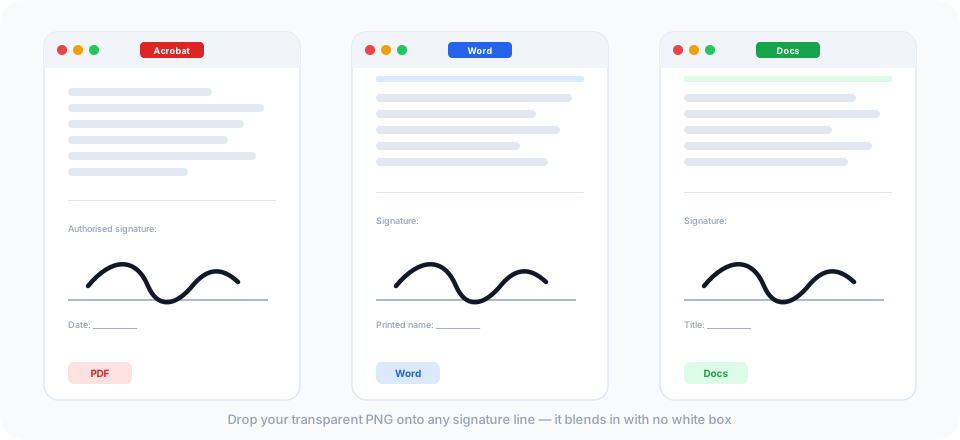
- Transparent PNG: only your strokes appear. The signature line stays visible underneath. It looks like you actually signed on paper.
- JPG (or a non-transparent PNG): a white rectangle slaps onto the page and covers the signature line, nearby text, and anything else underneath. The document looks doctored.
For a personal form or a casual one-off? It's just aesthetically bad. For a contract going to a client or a vendor agreement heading to legal review, it's a credibility problem. People notice image artifacts where a signature should be.
How to check that your PNG is actually transparent
Don't just trust the filename. Three quick ways to confirm:
- Open it in Preview (Mac) or Windows Photos — both show a checkerboard pattern behind transparent areas. Checkerboard around your strokes means you're good.
- Drag it onto a colored background, like a Google Slide with a blue fill. If the color shows through around the strokes, it's genuinely transparent.
- For the technically minded: open it in Photoshop or GIMP, or run
identify -verbose yourfile.pngin ImageMagick. Look for RGBA color mode, not RGB.
If any of those reveal a solid white background, you grabbed the wrong export. Go back, click Download Transparent PNG specifically — not the white-background version, and definitely not JPG.
Where you can use a transparent signature PNG
One file, works everywhere. Because it's a standard image format, any app that accepts images accepts this without any special setup:
- PDFs — Adobe Acrobat, Preview on macOS, Foxit, Nitro, PDF-XChange. Insert as an image or stamp.
- Microsoft Word — Insert → Pictures → set wrap to “In front of text” for free positioning over any layout.
- Google Docs — Insert → Image → Upload from computer, then wrap in front of text.
- Email signatures — embed as an inline image in your HTML signature block. Works in Gmail, Outlook, Apple Mail, and pretty much everything else.
- Slide decks — PowerPoint, Google Slides, Keynote. Transparent backgrounds look clean on any slide color.
- Web forms — upload wherever a form asks for a signature image.
Three ways to make one
Draw mode
On a phone or tablet, just sign with your finger. The tool uses the signature_pad library, which smooths out the strokes and handles variable pen width — so it actually looks like a real signature instead of a jagged mess. On desktop with a mouse, it takes a couple of tries to get something you're happy with, but most people manage it.
Pick a stroke width (2–3px works well for most uses) and choose from eight preset colors or enter any hex code. Black is the safest for formal documents; dark navy is a good alternative.
Type mode
If mouse handwriting isn't your strength — and honestly, for most people it isn't — Type mode lets you render your name in a script font. There are twelve to choose from: Caveat, Dancing Script, Sacramento, Great Vibes, Allura, Pinyon Script, Mr Dafoe, Mrs Saint Delafield, Pacifico, Kaushan Script, Yellowtail, and Satisfy. Some are casual, some are formal copperplate. The output is the same alpha-channel PNG as Draw mode. A typed signature in a good script font looks surprisingly authentic in a document — don't dismiss it.
Upload mode
Already have a paper signature you like? Snap a photo and upload it. The tool strips the background two ways:
- Threshold slider — fast and simple. Pixels brighter than the threshold become transparent. The default (200) handles clean photos on white paper well. Push it higher for even-lit scans.
- AI background removal — runs a neural network locally in your browser. First use downloads a ~40 MB model; after that it works offline. Better for photos with uneven lighting or shadows.
Your signature never leaves your browser
We say this everywhere on this site because it's genuinely true and genuinely unusual. Every step — drawing, typing, uploading, processing, exporting — happens on your device. There's no server receiving your signature data, no temp file sitting in someone else's storage, no analytics event that includes image content.
We do collect anonymous page-view analytics (which tab gets used most, which pages get traffic). Nothing that touches your actual signature. Full details in the privacy policy.
When to use a paid signing service instead
Let's be straight about this: DocuSign and Adobe Sign do something this tool doesn't. They wrap your signature in a timestamped, tamper-evident audit trail — who signed, when, from which device, with a cryptographic certificate proving it. For high-value contracts and regulated industries, that audit trail isn't optional.
For everything else — freelance contracts, internal approvals, vendor agreements, NDAs with small businesses, permission slips — nobody's running your document through a forensic verification service. They're checking that your signature is on the right line. A clean transparent PNG does that job, in seconds, for free.
Use the right tool for the situation. When you need an audit trail, pay for one. When you just need a clean signature image, generate one here.